

Try it in your pool for 30 days. Exchange it for another Dolphin for free, or return it with no restocking fee.
Your bag is empty.
By feature
Top pick: Dolphin Sigma
$2349 today · Free shipping · 30 day trial
The short answer
An app can start, stop and schedule a robot from your phone, but only two robots here have one, and neither app empties a filter.
The Dolphin Sigma is the most connected robot here: myDolphin Plus over WiFi and Bluetooth, scheduling by day and time, a filter alert and Siri voice control. The Dolphin Quantum is the lowest-priced pick with WiFi: start, stop, schedule, cleaning modes and alerts from the same app. The Premier, Cayman and Escape have no app at all.
If you want the best robotic pool cleaner with WiFi, the list is short. Of the five Dolphins compared here, two connect to a phone: the Sigma and the Quantum. Both use the myDolphin Plus app. The other three, including the robot this store is named for, are run from buttons on the power supply.
So this page does two jobs. It ranks the two robots that give you a phone link, and it helps you decide whether you need one. A robotic pool cleaner with app control costs more than one without, and the app does not clean the pool any better. What it changes is when and how you tell the robot to work. One warning before the picks: the WiFi signal has to reach the power supply at the pool, not just your kitchen.
Our picks, in order
Temporarily out of stock
Most complete app: WiFi plus Bluetooth
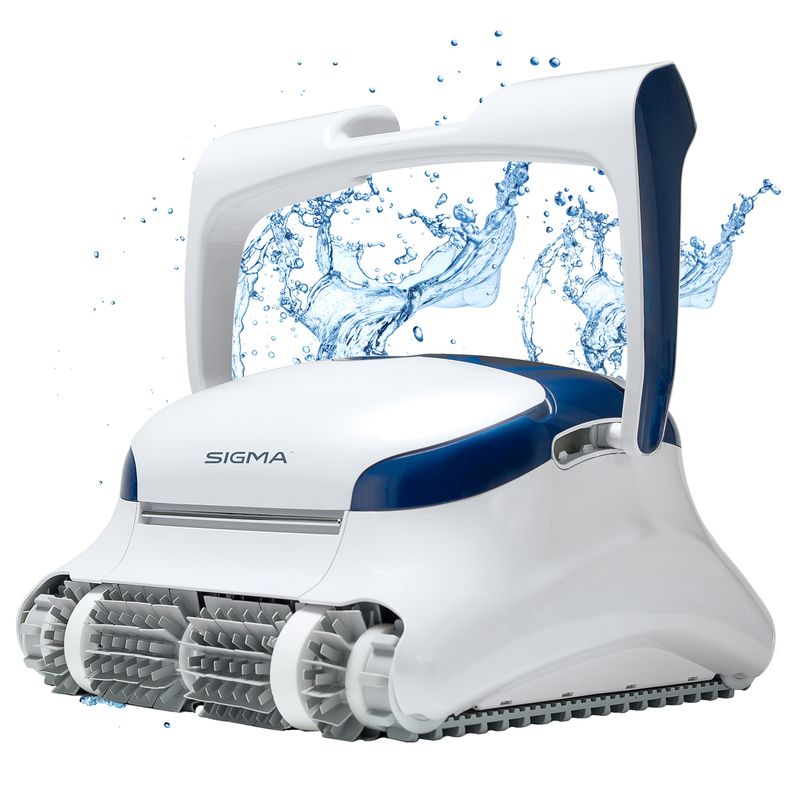
The Sigma is first because its connection is the fullest of any robot here. myDolphin Plus runs over WiFi and Bluetooth, so you can reach it from the office or from the deck when the home network is weak. The weekly scheduler works by day and time. A filter alert tells you when the cartridges need rinsing. Siri voice control lets you run it without opening the app.
The robot under the app is the top of this guide as well: three commercial-grade ProLine motors, quad brushes, 4,500 GPH, SmartNav 3.0 with an onboard gyroscope, and floor, walls and waterline in 2.5 hours. The warranty is 3 years. The price is the highest here.
Temporarily out of stock
Lowest price for WiFi control
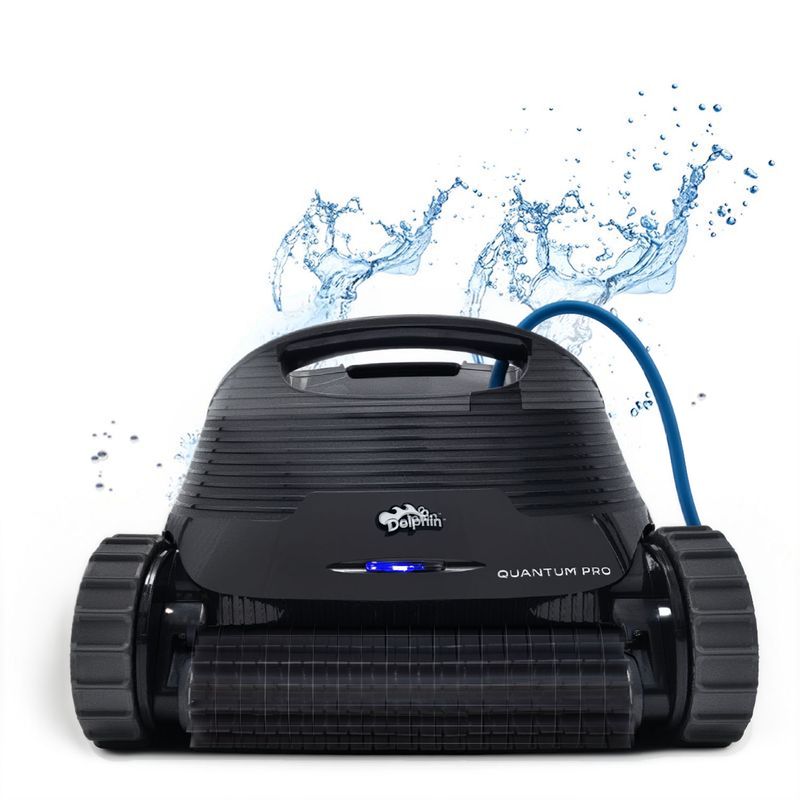
The Quantum is the least robot that puts your pool cleaner on your phone. myDolphin Plus over WiFi gives you start, stop, scheduling, cleaning modes and alerts, which covers what most owners want from an app. It is the lowest-priced 50 ft robot in this guide.
It also keeps a weekly timer on the power supply itself: three presets, from every day to every 3 days. If the router fails or the phone is elsewhere, the pool still gets cleaned. Coverage is floor, walls, waterline, sun shelves, Baja ledges and stairs in a 2-hour cycle, with an XXL MaxBin and a 2-year warranty.
How to judge a robot for this
Read the function list, not the word smart. The Quantum's app covers start, stop, scheduling, cleaning modes and alerts. The Sigma's app goes further: a weekly scheduler by day and time, a filter alert and Siri voice control. Anything not on those lists, assume the app does not do.
The connection is made by the power supply, which sits on the deck, back from the water. Your home network has to be usable at that spot. A router at the front of the house and a pool at the back of the yard is the usual failure.
WiFi lets you reach the robot from wherever your phone has a connection. Bluetooth is a short-range link for when you are standing at the pool. The Sigma lists both. The Quantum's app is listed for WiFi, so on that robot the home network is the one route.
A robot on a schedule runs unseen. The most useful thing an app can send is a prompt to deal with the filter. The Sigma has a filter alert in its app, and the Quantum's app sends alerts too. Without either, the reminder is you.
No app lifts the robot out, empties the basket, rinses the panels or straightens the cable. If those jobs are what you hoped to avoid, connectivity will disappoint you. Buy it for control and timing, not for less maintenance.
Side by side
| Specification | Dolphin Sigma | Dolphin Quantum |
|---|---|---|
| Price today | $2349 | $1599 |
| Cleans | Floor, walls and waterline | Floor, walls, waterline, sun shelves and stairs |
| Scheduling | Weekly scheduler by day and time | Weekly timer: every day, every 2 days or every 3 days |
| App | myDolphin Plus (Wi-Fi and Bluetooth) | myDolphin Plus (Wi-Fi) |
| Filtration | NanoFilters and standard filter cartridges | XXL MaxBin basket with standard and NanoFilter panels |
| Brushes | Quad scrubbing brushes | Dual HyperBrush |
| Navigation | SmartNav 3.0 with gyroscope | SmartNav 2.0 |
| Cable | 55 ft with 360° anti-tangle swivel | 55 ft with anti-tangle swivel |
| Warranty | 3 years | 2 years |
Do this with the phone in your pocket right now. Walk to the place where the power supply would sit: within cable reach of the pool, back from the edge by the distance the manual gives, near an outlet. Open a web page on WiFi, not cellular. If it loads without a pause, an app robot will be happy there.
If it stalls, the app will stall too, and the robot will get the blame. You can fix the network with an extender or mesh point toward the back of the house, or move the power supply toward the house and let the 55 ft cable make up the distance.
It helps to split the claims into two lists: what a phone link really alters, and what stays exactly as it is on a robot with no app at all.
Plenty of owners would set a schedule in the first week and never open the app again. If that sounds like you, a timer on the power supply does the same job for less, with nothing to pair.
The Premier repeats every day, every 2 days or every 3 days from its power supply, with no app. The Cayman's timer runs every day. The Escape takes an optional Automation Timer power supply that repeats every 24, 48 or 72 hours. None of them can be started from the office. All of them clean the pool on a routine.
Starting a cycle from somewhere else is the headline feature of WiFi, and it earns its keep in a few real cases: a storm blows through while you are at work, guests are coming and you are stuck in traffic, or the pool is at a second home.
The condition is that the robot is already in the water with a clean filter. An app can start a robot. It cannot put one in the pool. Remote control suits owners who leave the robot in between scheduled cycles and empty the filter on a regular day. If the robot lives in the garage, the app has nothing to start.
Questions, answered
The power supply. It sits on the deck, joins your network and passes instructions down the cable to the robot. Radio signals do not carry usefully through pool water, so the robot itself is never the wireless device. Check signal strength at the power supply's spot, not at the water's edge.
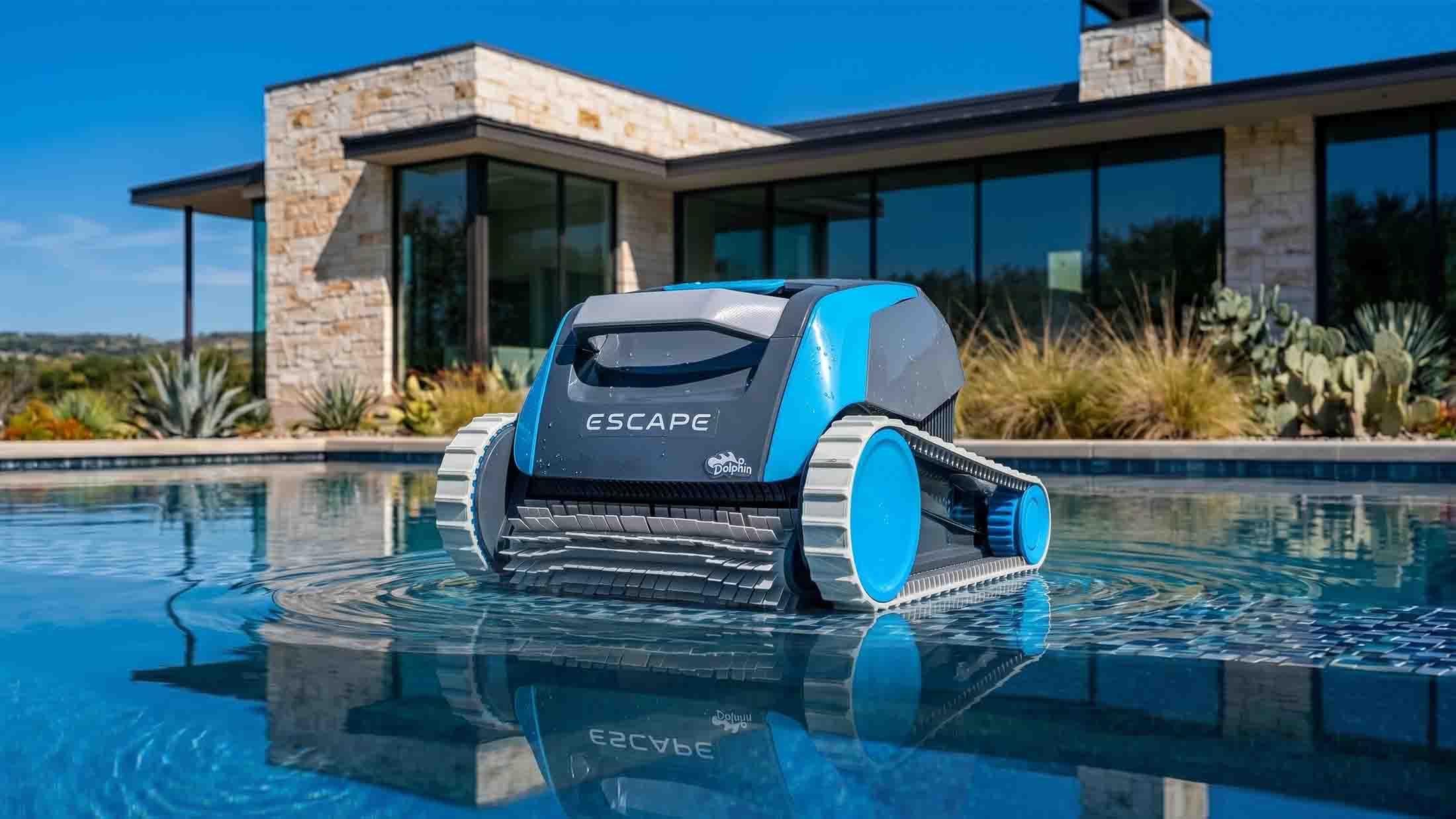
No. The Escape has no app, no WiFi and no Bluetooth, and neither do the Cayman or the Premier. They are controlled from the power supply. If you want an Escape to run on a routine, the optional Automation Timer power supply runs it every 24, 48 or 72 hours, no phone required.
The robot does not need the internet to clean. It needs power and a start command. On the Quantum, the weekly timer on the power supply works with no phone or WiFi. On the Sigma, Bluetooth gives you a poolside link when the home network is down. What you lose during an outage is control from a distance.
Only if you will use it. WiFi earns its price when you want day-and-time scheduling, starts from a distance or alerts on your phone. If you would set one routine and leave it, a timer on the power supply does that for less. The cleaning itself comes from motors, brushes and filters, not from the connection.
It does with the Sigma, which lists Siri voice control alongside its app. You can run the robot by voice instead of opening myDolphin Plus. The Quantum's feature list does not include it. Treat voice as a convenience on top of scheduling: let the schedule do the routine work and keep voice for the odd extra run.
The verdict
Buy WiFi for control, not for cleaning. If you want named days and hours, filter alerts and a link that works at the poolside even without the home network, choose the Sigma. If you want app control for the least money and your signal reaches the power supply, choose the Quantum. If you would set a routine once and forget it, skip the app, keep the difference, and let a power-supply timer do the remembering.
Keep reading
